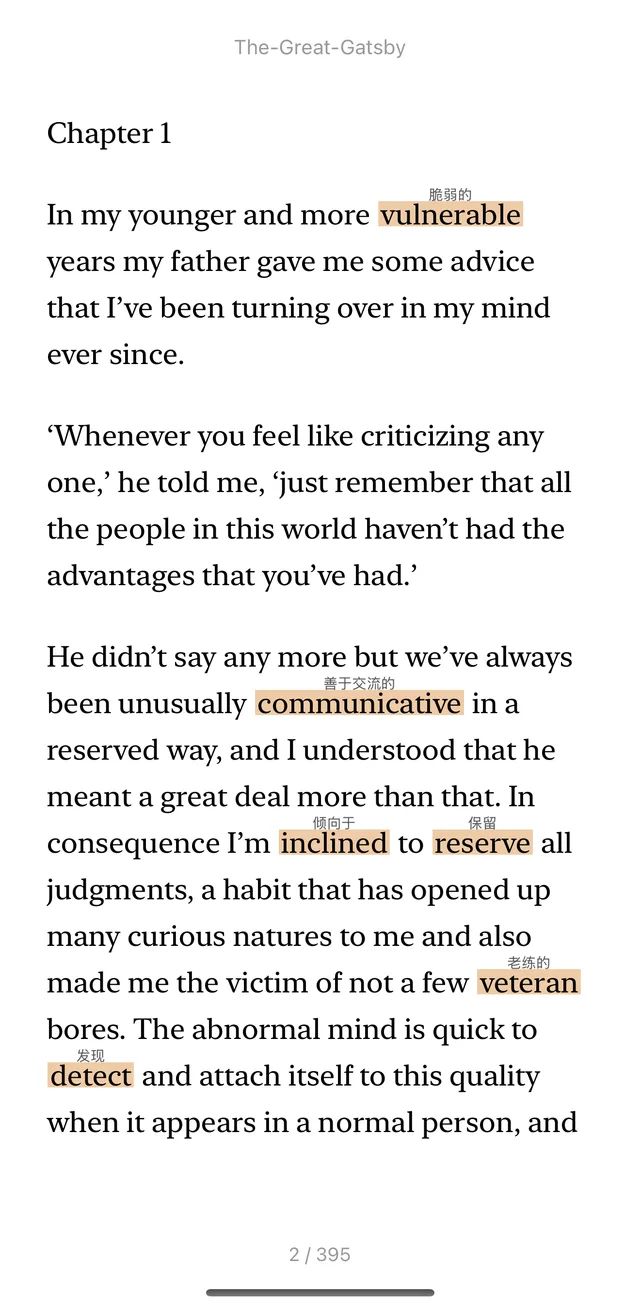
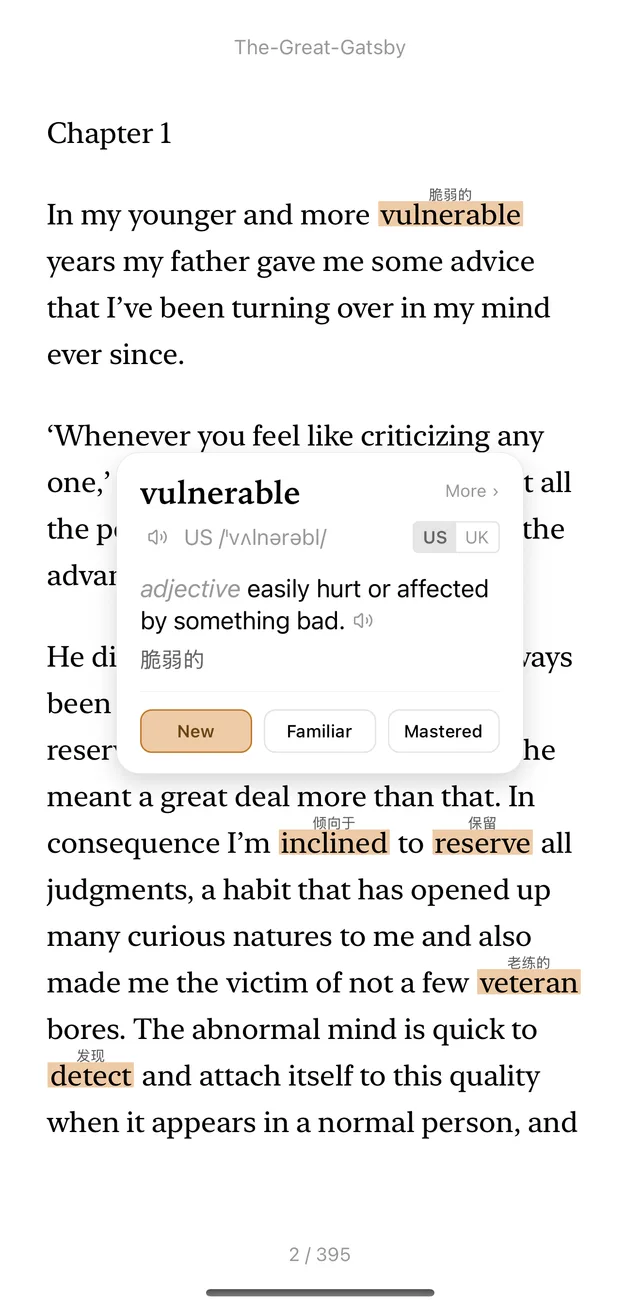
SentiaRead for Android
Read English with ease on your phone or tablet, and review the words you saved.

Also available for E-Ink readers, Mac, Windows and iPhone / iPad.
Frequently Asked Questions
How do I install the official APK?
Two steps. Installing from Google Play needs none of this.
1. Download SentiaRead.apk in your browser, then tap it in your notification shade or Downloads folder.
2. Grant permission when Android asks to install apps from this source, then tap Install.
A new version is out. How do I update?
SentiaRead tells you at launch when a newer version exists. Tap Update and the download opens in your browser, then install the new APK over the old one; your library, reading progress and saved words all stay where they are.
You can also come back to this page and grab the current APK whenever you like.
Is the APK different from the Google Play build?
No. Features and version numbers are identical.
Which build should I use on an E-Ink reader like Boox?
The same app either way: installed from Google Play or from the APK, both support E-Ink. The E-Ink page linked above covers what E-Ink mode changes and which readers we have tested.
Which formats can I import, and how do I get my own content in?
Book files: EPUB, PDF, TXT and Markdown. Kindle formats (MOBI, AZW3) and Word documents are not supported, and neither are DRM-protected EPUBs or PDFs that are password-locked or pure scans.
Files: use Import in the library, or open a file from your file manager and choose SentiaRead.
Web articles: paste the link into the import field, or use Share in your browser and pick SentiaRead. The article is extracted on the device. Pages behind a login or paywall usually cannot be read this way.
Anything imported on your computer shows up here as soon as you sign in with the same account.
Do I need to pay again to use it on multiple devices?
No. One account works everywhere, and Plus follows the account rather than the device: buy it on a computer or iPhone and it is already active when you sign in on your Android device, and the same the other way round. There is no limit on how many devices you use.
Once you are signed in, your books, imported documents and saved webpages, reading progress, vocabulary, highlights and notes all sync, so you can pick up where you stopped. What travels through the cloud is the readable content (text, images, cover), not a backup of your original EPUB or PDF, which stays on the device you imported it on.